ChatGPT, Claude, and Gemini can take your to-do list and calendar and plan your entire day for you. This guide walks through how to do it, with free prompts you can copy and paste directly into your AI assistant.
⚡TL;DR
- You can plan your day with AI by connecting your calendar and to-do list to ChatGPT, Claude, or Gemini, then pasting in a prompt with your work hours, task durations, and scheduling rules.
- Weekly planning works too, but AI assistants can start to struggle with the number of constraints.
- For busy weeks or plans that change frequently, use a dedicated auto-scheduler like FlowSavvy.
Can ChatGPT (or any AI) make a schedule for you?
Yes, ChatGPT, Claude, and Gemini can all make a schedule for you. These AI assistants excel at turning a natural language brain dump into a structured, prioritized plan with estimated task durations. They’re great at creating simple daily plans, but typically struggle with the large number of constraints involved in complex weekly planning.
How to plan your day with AI (step by step)
Step 1. Set up your AI assistant
First, you’ll need an AI assistant. If you haven’t already, create an account on your AI assistant of choice. I was able to run through the entire process below smoothly with Claude, ChatGPT, and Gemini, so any of them will work.
I’ll be using Claude in my examples, since I experienced the least hiccups with it while using it for daily planning, and it includes a Google Calendar connector for free.
Step 2. Connect your calendar
You’ll need to connect your calendar so your AI assistant can see which events are already in your calendar, and so it can write your plan directly into your calendar.
Google Calendar is a great, simple choice that works with Claude, ChatGPT, and Gemini. I’ll be using Google Calendar with Claude in this guide, since those two have the most robust, smooth, free connection. For more on how these connections work, see our Google Calendar MCP guide.
How to add the Google Calendar plugin in your AI assistant:
- Claude: Profile icon -> Settings -> Connectors -> Search for your calendar app -> Connect to Claude.
- ChatGPT: Profile icon -> Settings -> Plugins -> Browse plugins -> Search for your calendar app -> Install Plugin
- Note: The Google Calendar plugin on ChatGPT requires a ChatGPT paid plan.
- Gemini: Settings icon -> Personal intelligence (Click “Connected apps” if you don’t see the “Personal intelligence” option) -> Connected apps -> Ensure “Google Workspace” is turned on.
- Note: The only calendar app Gemini currently integrates with natively is Google Calendar. Adding custom connectors via an MCP url is available on paid personal Google plans, not school/work plans (source).
If you prefer to keep things ultra simple, you can choose to not connect a calendar and just include existing events in the AI prompt in step 4. However, connecting your calendar gives a nice UI for viewing your plan and making manual adjustments.
Important: Make sure you add time for all fixed blocks of time, including any fixed meal times and commute times. We don’t typically put these in our calendar, but the AI needs them to know when you’re actually available.
Step 3. Add your tasks
Next, your AI assistant needs to know which tasks to schedule into your day. If you already use a to-do list app like Todoist, Google Tasks, etc., connect that app to your AI assistant using the same instructions in Step 2. Make sure to use your to-do list app’s “Today” feature if it has one, or assign tasks to be due today, so your assistant knows which tasks to schedule.
I’d recommend using a to-do list app because you’ll frequently remember things you need to get done but will want to do them on other days, so a to-do list app lets you capture those tasks and then resurface them when it’s time to make a plan for that day.
However, if you prefer to keep things simple, you can just type out the tasks you want to work on that day each time you do your daily planning, and pass them directly into the prompt. Here’s what that list of tasks might look like:
Tasks:
- Workout (45 min, Personal)
- Triage email and set top priorities (30 min, Work)
- Client check-in calls (45 min, Work)
- Deep work: strategy or proposal writing (90 min, Work, must be done in one consecutive block)
- Review invoices and approve payroll (30 min, Work)
- Approve marketing and social content (30 min, Work)
- Follow up with suppliers (20 min, Work)
- Grocery run and errands (30 min, Personal)
- Plan tomorrow’s priorities (15 min, Work)
Notice I’ve labeled tasks as “Work” or “Personal”. Regardless of where you keep your tasks, you’ll want to give the AI some hint of when the task should be scheduled so you don’t end up with personal tasks in work hours and work tasks when you’re not at work.
You can accomplish this by putting tasks in different lists in your to-do list app, using label/tag filters, or just put it in the title, like I’ve done above. Just make sure to tell the AI how your tasks are organized in the prompt, so it knows which tasks to schedule during which hours.
Step 4. Paste in this daily schedule prompt
Copy and paste the appropriate prompt into your AI assistant, making sure to fill in the bracketed placeholders. These prompts are just starting places, so feel free to add or modify the instructions for your situation.
If your tasks are in a to-do list app:
Schedule the tasks that are due today from my [insert your to-do list app] into my calendar today in [insert your calendar app] around my existing events.
Requirements:
- Work tasks must be scheduled between 9am-5pm, and personal tasks must be scheduled between 6-9pm. My work tasks are in my “Work” list, and personal tasks are in my “Personal” list.
- If a task already has a listed duration, use that duration, and if a task does not have a duration, estimate an appropriate duration based on the title.
- Tasks can be split into 15-minute or longer chunks if needed, but their total duration must equal the listed duration.
- Do not schedule tasks in the past.
- Do not move existing meetings.
- Prioritize important tasks, and tell me if any tasks are unable to fit.
If you’re entering your tasks directly:
Schedule the tasks below into my day today in [insert your calendar app] around my existing events.
Tasks:
[Insert tasks here]
Requirements:
- Work tasks must be scheduled between 9am-5pm, and personal tasks must be scheduled between 6-9pm. My work tasks are labeled “Work” and my personal tasks are labeled “Personal”.
- If a task already has a listed duration, use that duration, and if a task does not have a duration, estimate an appropriate duration based on the title.
- Tasks can be split into 15-minute or longer chunks if needed, but their total duration must equal the listed duration.
- Do not schedule tasks in the past.
- Do not move existing meetings.
- Prioritize important tasks, and tell me if any tasks are unable to fit.
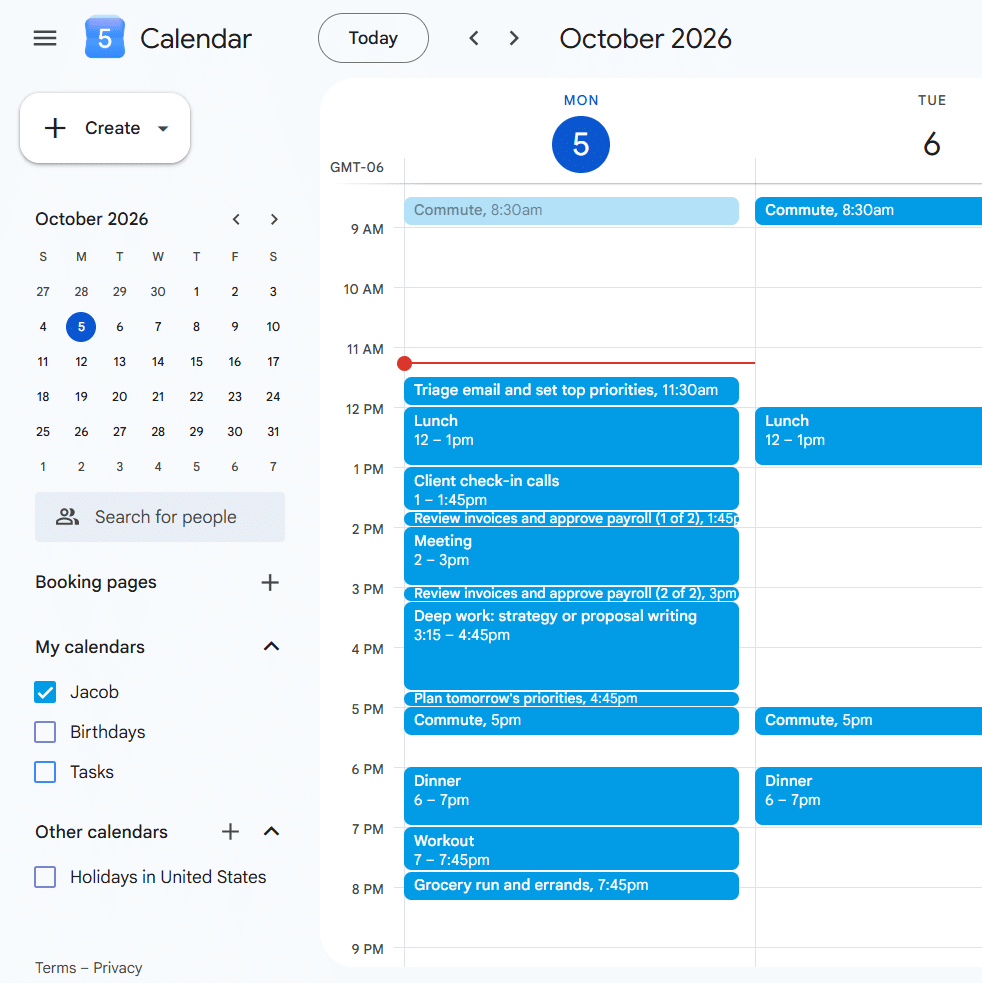
When I tested this in Claude, it took Claude 25-30 seconds each of the 3 times I tested this prompt on Sonnet 5.5, and each one generated a reasonable day plan with no missed constraints. I purposefully overloaded it to see how it would prioritize tasks, and it decided to leave out 2 low-importance admin tasks, and it flagged those to me. Here’s the schedule Claude created for me in Google Calendar:
Step 5. (Optional) Customize your plan
Here are a few additional sections you can add to your prompt to customize your day plan.
Create tasks in a different calendar
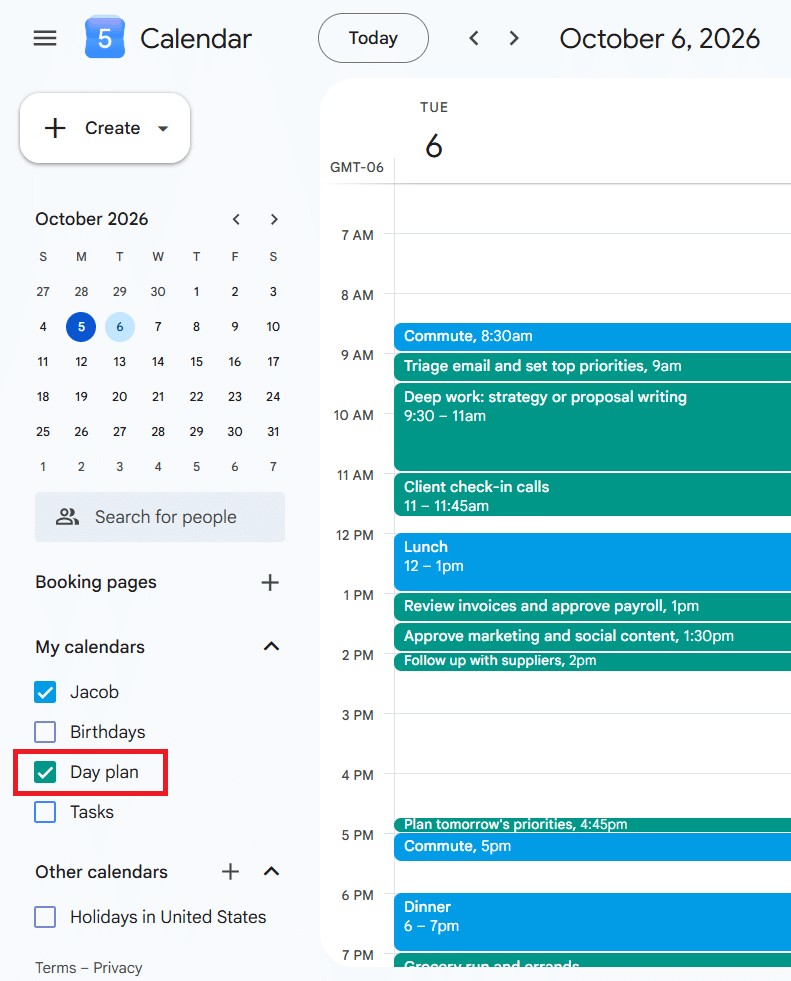
I highly recommend instructing your assistant to add tasks to a calendar other than your main calendar. For example, create a calendar called “Day plan” in Google Calendar, and then add this to your prompt requirements:
Schedule all tasks into my “Day plan” calendar.
This has three benefits:
- You can quickly show/hide the tasks that your AI assistant scheduled into your calendar so you can quickly see your fixed commitments compared to your planned tasks.
- Your coworkers and clients will never see your tasks, so they’ll still be able to easily book with you.
- In case you want to clear out your tasks and start over, it’s easy to just delete the entire calendar, which will delete only your tasks, not your other events.
Color code by category
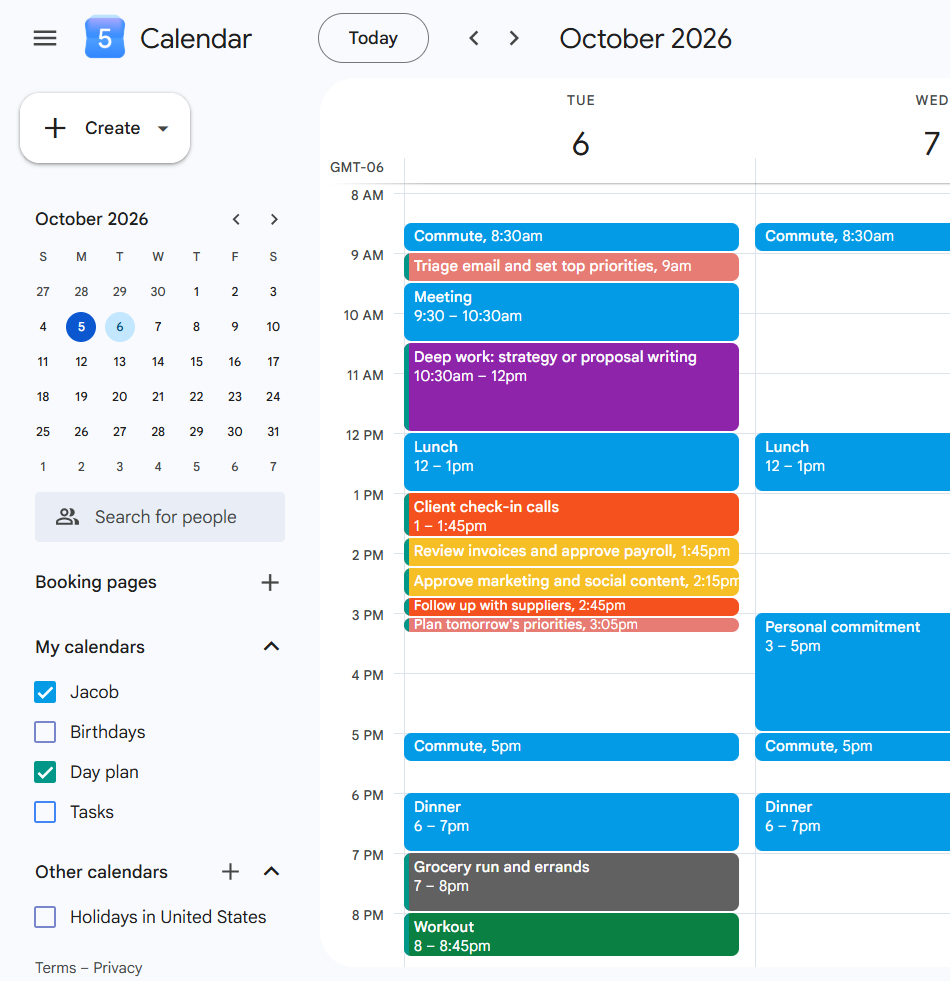
Claude, ChatGPT, and Gemini are all capable of color-coding your tasks in Google Calendar. That means you can color code by any category you like:
- Task category (work, personal, study, etc.)
- Urgency
- Priority
- Difficulty level
- Projects
Just include this in your requirements in the prompt:
Color-code my tasks by category:
- Work = blue
- Personal = red
- Study = yellow
Note: Claude, ChatGPT, and Gemini only support custom colors in Google Calendar. Claude and Gemini do not support write-access Outlook or iCloud connectors, and ChatGPT’s Outlook connector does not support Outlook’s “category” property, which is how custom colors are applied in the UI/API.
Batch tasks by category
Time blocking individual tasks onto the calendar is sometimes overwhelming. One way to combat that is to batch your tasks into larger time blocks by category. For example, instead of making a schedule like…
- 9-9:30am: Answer emails
- 9:30-10am: Follow up with clients
- 10-11am: Performance reviews
…you can instead just make one block:
- 9-11am: Admin work
If that approach seems more manageable to you, copy and paste this into the requirements section in your prompt:
Organize my tasks into logical categories, and then schedule time blocks for just the categories rather than the individual tasks. The duration of the category time block should still equal the total duration of the subtasks. Include the individual tasks in the notes of the event.
Breaks
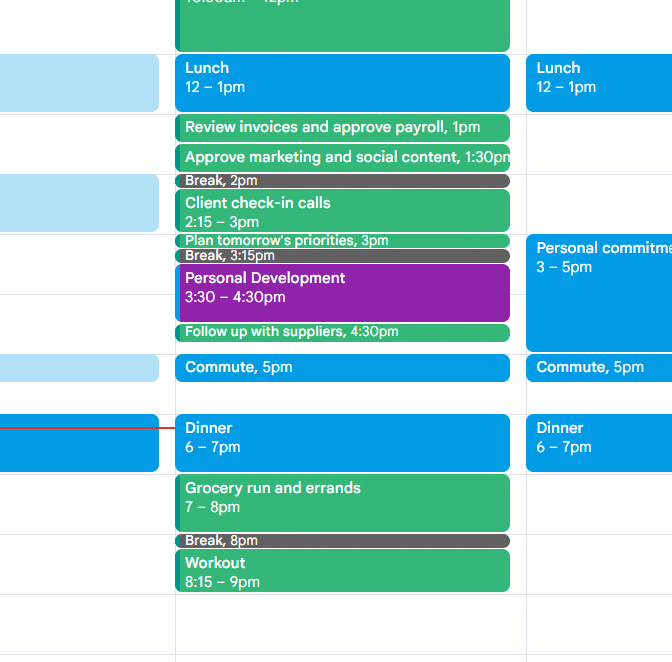
You may want to schedule in breaks so you don’t have hours of uninterrupted work. To do that, just copy and paste this as a requirement in your prompt (customize the numbers to your liking):
After 60 consecutive minutes of tasks, schedule a 15 minute “Break” event.
How to plan your week with AI
Weekly planning with AI follows roughly the same steps as daily planning, but with a few extra steps. Weeks have a few more extra moving parts than days:
- More possible positions for each task: Tasks have due dates spread over several days and have many possible days they could be scheduled.
- Task dependencies: Dependencies can exist in daily planning but are more common in weekly planning.
- Many more tasks and events: This means more context the AI has to ingest, and therefore more opportunities to miss constraints.
- Repeating tasks: Daily tasks and complex repeat rules like “must be done between Wednesday and Friday every week”.
What to change from daily planning:
You’ll still follow steps 1-3 above to set up your AI assistant, connect your calendar, and connect your tasks, but then you’ll want to change a few things:
- Give every task a due date. This will allow the AI to consider your due dates and priorities and know which tasks need to be scheduled ASAP and which have some room to be pushed back.
- Include your hours for different days, if they’re different. For example, your Saturdays and Sundays might have longer personal hours and no work hours.
- After your assistant schedules your week, thoroughly review the plan to ensure nothing important was dropped. Daily planning is relatively simple for LLMs, but weekly planning is where you’ll start to see hallucinations creep in, so human review is important here.
Weekly planning prompt (copy and paste):
Schedule my tasks for this week (Sunday through Saturday) from my [insert your to-do list app] into my calendar in [insert your calendar app] around my existing events.
Requirements:
- Work tasks must be scheduled between 9am-5pm M-F, and personal tasks must be scheduled between 6-9pm M-F or 9am-9pm Sat-Sun. My work tasks are in my “Work” list, and personal tasks are in my “Personal” list.
- If a task already has a listed duration, use that duration, and if a task does not have a duration, estimate an appropriate duration based on the title.
- Tasks can be split into 15-minute or longer chunks if needed, but their total duration must equal the listed duration.
- Respect any noted dependencies.
- Do not schedule tasks in the past.
- Do not move existing meetings.
- Prioritize important tasks, and tell me if any tasks are unable to fit or are scheduled after their deadline.
ChatGPT vs. Claude vs. Gemini for daily planning
In my testing, planning quality and speed were practically comparable across the frontier models from ChatGPT, Claude, and Gemini, for both daily and weekly plans. So the decision really comes down to which integrations you need and which convenience factors you want.
- For Microsoft 365 support, choose ChatGPT. It currently has the best Microsoft 365 connector.
- If you use Google Calendar and Google Tasks, choose Gemini.
- If you use Google Calendar and a to-do app other than Google Tasks, choose Claude.
Claude
- Microsoft 365 connector is read-only and only connects to work/school accounts.
- Fine-grained permissions let you block/ask/allow individual tool calls, or auto-allow all or low-risk calls.
- Google Calendar connector is free.
- Can click into individual tool calls to see the exact request and response. Useful to see exactly what Claude is doing.
- Mobile voice mode supports connectors, though Claude’s mobile voice mode is not as natural as ChatGPT’s and Gemini’s.
ChatGPT
- Outlook Calendar connector is free and read/write.
- Google Calendar connector is a paid feature.
- Can auto-allow all tools or certain types of tools like low-risk or read-only tools.
- Connectors are supported in mobile voice mode, and ChatGPT has the most natural-sounding voice mode.
Gemini
- Only assistant that natively supports Google Tasks
- Google Calendar connector is free, but it’s the only native calendar connector.
- MCP support is available on paid personal accounts only. Not ideal for other calendar or to-do list integrations.
- No way to say which actions should ask for confirmation first or auto-allow, so you’ll be confirming actions more often.
- Connectors are supported in mobile voice mode, and the voice mode sounds very natural.
Limitations of planning your day with AI (and how to fix them)
AI assistants are great at taking natural language and turning it into a plan for the day. However, they have some limitations that make them less ideal for people whose plans are constantly changing or who want to schedule lots of tasks. Here are the main limitations:
1. It’s slow
Each of my test runs took 25-30 seconds for just a simple day, and even longer for planning multiple days. It took Claude, ChatGPT, and Gemini 1-2 minutes to schedule these green tasks into just one week of the calendar:
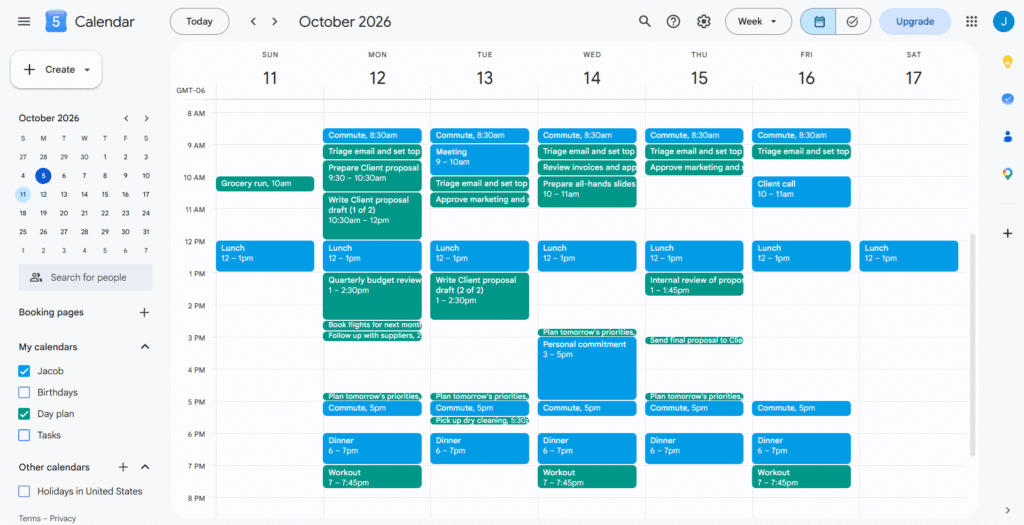
The AI has to read your calendar, read your tasks, reason through the constraints, and then make a separate tool call for every event it creates. A heavier day or a full week takes longer, and you have to repeat the whole process every time you replan.
How to fix it: Set up a scheduled run in your AI assistant every morning so you’re not sitting there waiting for it. Limit the scope of your scheduling to 1-7 days. If you need to replan often or have a large number of tasks where speed matters, use a dedicated scheduling app. FlowSavvy generates up to 8 weeks of heavy workloads in seconds, because it uses a dedicated scheduling algorithm and efficient bulk syncing to your calendar, rather than LLM-powered scheduling and one-at-a-time calendar edits.
2. It doesn’t reschedule automatically
A plan created by Claude, ChatGPT, or Gemini is just a static schedule of regular events. When a meeting runs over, or you miss a task, nothing updates. You have to open your AI assistant, explain what changed, and ask it to replan.
How to fix it: Set up scheduled runs in your AI assistant to periodically check for conflicts and fix them. For real-time auto-rescheduling, FlowSavvy automatically reschedules your tasks when your calendar changes or you fall behind, so your calendar stays updated without you re-prompting anything. Motion is another option, but it’s geared more toward teams and project management.
3. It makes mistakes
With the current state of frontier models, daily planning with AI is extremely reliable and unlikely to result in hallucinations and dropped constraints. However, when planning multiple days/weeks with hundreds of tasks, events, deadlines, dependencies, and tight availability, AI assistants start to make mistakes. Plus, the more you reschedule, the more context the AI needs to remember, and AI assistants have a limited context window.
How to fix it: Always compare the generated plan with your original task list to make sure everything was included, especially if you’re planning more than a few days at a time. If you regularly plan busy days or weeks, a dedicated auto-scheduler is more reliable. FlowSavvy’s scheduler is designed to never drop constraints, and it tells you when something can’t fit into the schedule.
Final thoughts: should you use AI to plan your day?
Yes, you should use AI to plan your day, as long as your day is relatively simple. ChatGPT, Claude, and Gemini can turn a task list and natural language into a realistic schedule in about 30 seconds, but they don’t reschedule automatically when your day changes, and they can struggle under heavy loads.
If you’re looking for a simple way to create a schedule for your day, use an AI assistant. If you need auto-rescheduling, or plan full weeks, try FlowSavvy.
FAQ
Can ChatGPT connect to my calendar?
Yes, ChatGPT can connect to your calendar, allowing you to read and write to your calendar from ChatGPT. The Outlook Calendar connector is free and can read and write. The Google Calendar connector requires a paid ChatGPT plan.
Can Claude connect to Google Calendar?
Yes, Claude has a free Google Calendar integration. In Claude, go to your profile icon -> Settings -> Connectors, search for Google Calendar, and connect it. Once connected, Claude can see your existing events and write your plan directly into your calendar.
What’s the best AI planner for daily planning?
It depends on how complex your day is. For a simple day, ChatGPT, Claude, or Gemini can build a solid plan from a task list and a connected calendar in about 30 seconds. For busy weeks, or plans that keep changing, a dedicated scheduling app like FlowSavvy is a better fit, since AI assistants don’t reschedule automatically and can make mistakes under heavy loads. For a comparison of other options, see our roundup of the best AI day planners.
Can AI reschedule my day automatically?
AI assistants like ChatGPT, Claude, and Gemini don’t reschedule your day on their own. When you create a schedule with one of these assistants, and then your day changes, you have to ask it to replan. If you want your schedule to update automatically, you’ll need a dedicated auto-scheduling app like FlowSavvy.