What was Google Calendar Goals?
Google Calendar Goals was a feature in Google Calendar that let you put in how many times per week you wanted to complete a goal, and then Google Calendar would automatically schedule time for that task directly into your calendar.
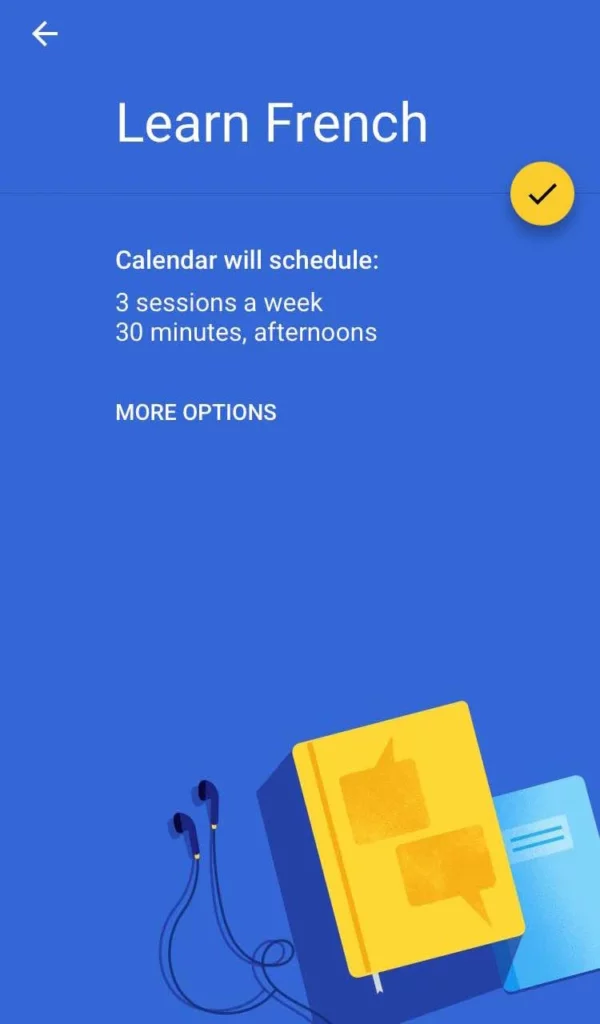
This could be used for things like “work out”, “learn French”, or “walk the dog”. Things that you want to do regularly, but the exact time of day that you do it doesn’t really matter.
Why was Google Calendar Goals helpful?
Google Calendar Goals was helpful because it fixed the biggest problem with time blocking.
Time blocking is the practice of blocking off time on your calendar to work on specific tasks. This is commonly rated as the most effective time management strategy, because you’re much more likely to get tasks done if they’re on your calendar.
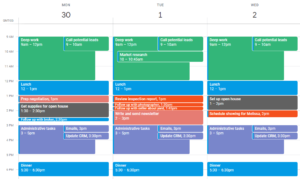
However, time blocking has one critical downfall: when something comes up or you get behind, you have to manually rearrange the events you created for your tasks, like this:
This can get extremely tedious and discourage you from planning your day with time blocks in the first place.
Google Calendar Goals was solving this problem by dynamically scheduling your repeating tasks. If a conflict arose, the goal would be automatically shifted to another time. This way, users were able to get the benefits of time blocking without having to constantly manage their schedule.
When did Google get rid of Goals?
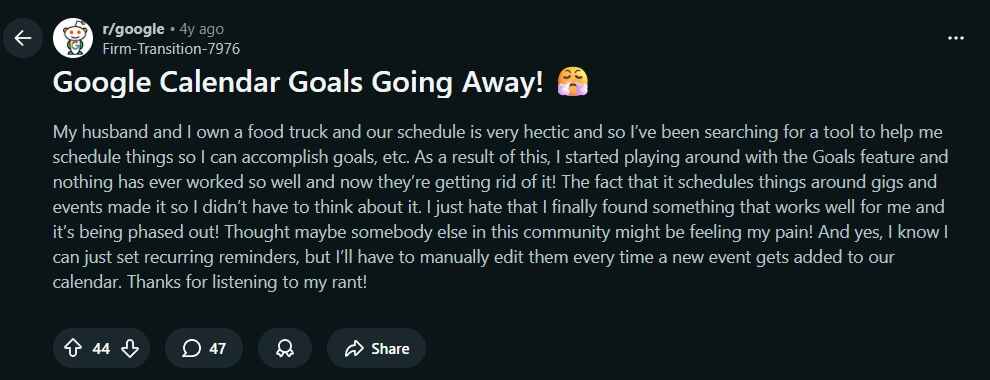
Google removed Google Calendar Goals in November of 2022 and suggested users use recurring events instead.
This change was met with a lot of resistance from the community in Reddit threads and support forums:
Why was Google Calendar Goals shut down?
While Google never gave an official reason for shutting down Google Calendar Goals, there is speculation that it was shut down because of low adoption and Google making Calendar a more workplace-focused tool.
How to set Goals in Google Calendar in 2026
While the “Goals” feature no longer exists directly in Google Calendar, you can get similar auto-scheduling functionality by connecting your Google Calendar to an auto-scheduling app. FlowSavvy is the best way to replicate this behavior in 2026 since it can connect to your Google Calendar and auto-schedule your goals (and other tasks) into your Google Calendar around your other events.
Here’s how you can add goals to your Google Calendar using FlowSavvy:
Step 1: Create your FlowSavvy account
In order to schedule your goals, you’ll need to create a free FlowSavvy account. FlowSavvy works on web, iOS, and Android, so you can use any of them to create your account.
Step 2: Connect your Google Calendar account
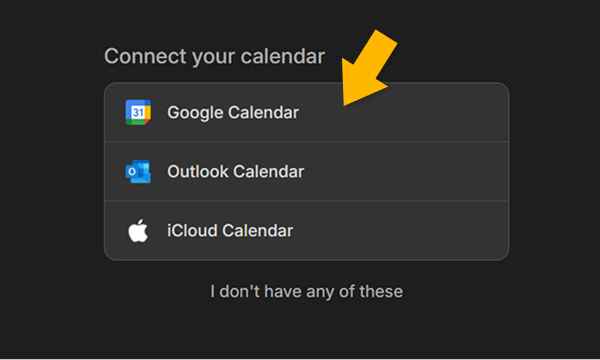
Right after you create your account, you’ll be asked if you want to connect any calendars. Connect your Google Calendar account here so FlowSavvy can import your existing events. This will allow FlowSavvy to know when you’re busy so it schedules your goals around your existing events.
You can connect unlimited calendars completely free.
Step 3: Add your first goal
To add your goals, you’ll create a repeating auto-scheduled task in FlowSavvy.
Let’s start with a simple example: Daily exercise. Here’s how you’d set up that goal in FlowSavvy:
- Click the “+” button
- Enter the title “Exercise”
- Set the duration to “1 hour”
- Click “Does not repeat” and change it to “Repeats daily”
- Click “Add”, and FlowSavvy will automatically find time for each workout in your calendar!
Here’s a quick video demonstrating the process, which looks the same on web, iOS, and Android:
Now, your goal is set up in FlowSavvy. If plans change or you miss a goal, FlowSavvy will automatically find another time for your goal so that nothing falls through the cracks.
Note: FlowSavvy offers 3 repeating auto-scheduled tasks on the Free plan so you can set up your most important goals, and the Pro plan includes unlimited for those who want to automate more goals. Non-repeating auto-scheduled tasks are always free.
Step 4: Sync your goals back to Google Calendar (optional)
To close the loop and get your auto-scheduled FlowSavvy goals and tasks to show up directly in your Google Calendar, follow these steps:
- Click your name in the top left of FlowSavvy.
- Click Settings.
- Go to the Calendars tab.
- Scroll to the bottom and select the calendar you want tasks to sync to in the Sync tasks section
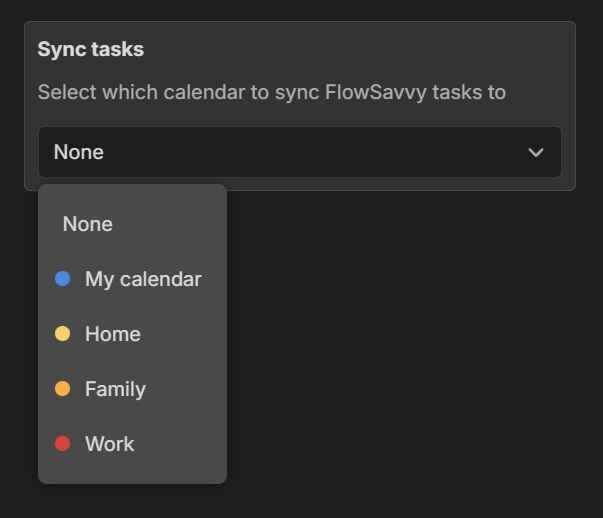
If you want to keep your auto-scheduled goals and tasks only in FlowSavvy, you can skip this option.
Note: Syncing FlowSavvy tasks to external calendars is a Pro feature.
Can I add more complicated goals in FlowSavvy?
Yes! While the daily task example above was very simple, FlowSavvy also supports more complicated repeating task setups as well. For example, some common goals you could set up include the following:
- Walk the dog between 6-8am or 6-9pm every day.
- Check inbox every other day.
- Mow the lawn weekly on Saturday or Sunday.
- Submit a report any time between Monday and Friday every week.
- Pay bills every month sometime during the first week of the month.
- Change the air filters every 3 months, any time during the last 2 weeks of the 3rd month.
The possibilities are endless with FlowSavvy, and once you get all of your goals set up, FlowSavvy seamlessly builds your calendar and ensures you always have time for all of your goals. This takes a huge mental load off you so you can just focus on accomplishing your goals instead of worrying about when to do everything.
Conclusion: The Best Google Calendar Goals Alternative
Although Google Calendar Goals has been shut down, FlowSavvy can still help you auto-schedule your week, and FlowSavvy is here to stay! If you’re looking for an app that auto-schedules your goals like Google Calendar Goals, FlowSavvy is the easiest way to get started with auto-scheduling.
Create a free account today, tell FlowSavvy what’s on your plate, and watch it automatically plan time for your tasks!