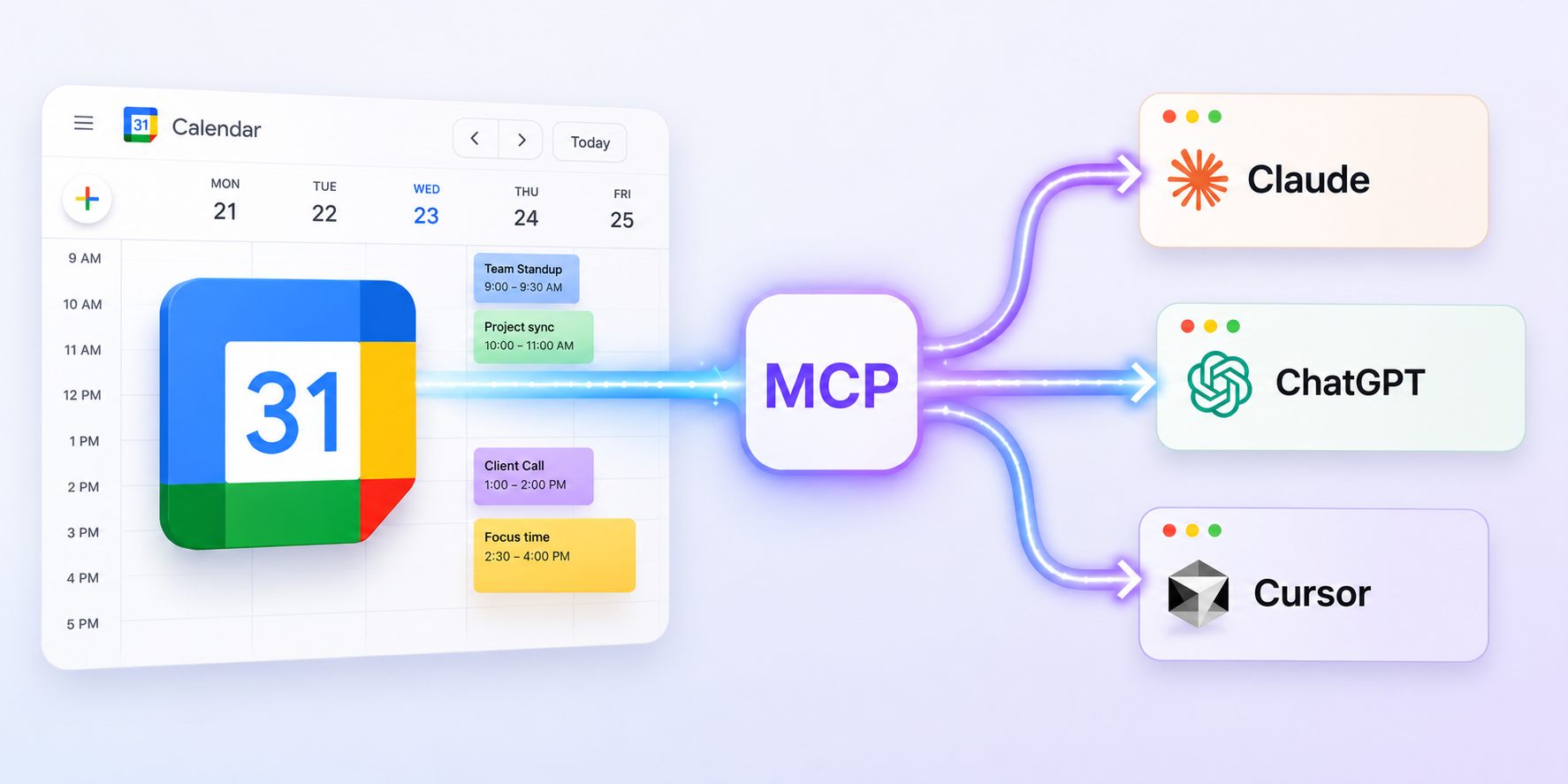
Creating and editing events in Google Calendar can be tedious and require a lot of clicking and typing events in one at a time. Connecting an AI assistant like Claude to Google Calendar’s MCP makes this process easier. Simply tell the AI assistant what to change, upload a photo of a schedule, and it makes the changes for you. In this guide, we’ll show you how to connect your AI assistant to the Google Calendar MCP, what you can do once connected, and what to do if you need even more advanced scheduling.
What is MCP (Model Context Protocol)?
MCP is an open standard that lets AI assistants connect to outside tools and data, with your permission, and take actions on your behalf. Instead of every app inventing its own plugin format, MCP gives assistants and services a common language.
Two terms are worth knowing:
- MCP server: a service that exposes a set of tools (e.g. Google Calendar).
- MCP client: the AI app that talks to the server and runs its tools for you. Claude, ChatGPT, and Cursor are all MCP clients.
So “connecting Google Calendar to your AI assistant” really means: pointing your MCP client (the assistant) at Google’s MCP server (the MCP URL), then approving access. You can read more at modelcontextprotocol.io.
What can I do with the Google Calendar MCP?
Once connected, you can create, update, delete, and ask about events in plain language. The real wins are the jobs you’d dread doing by hand in the calendar UI: adding many events at once, making bulk changes from one instruction, or turning source material from elsewhere (a pasted syllabus, an email with dates, a photo of a schedule) into events on your calendar.
Here are a few example prompts that all work with Google Calendar’s MCP:
- “Add these 12 assignment due dates from my syllabus [paste].”
- “This photo is our conference schedule. Add each session to my calendar.”
- “Move all my Tuesday 1:1s to Wednesday for the next month.”
- “Delete every event titled ‘HOLD’ next week.”
- “Create a dentist appointment at 11am on Tuesday for 45 minutes.”
MCP can read your calendar too and answer questions like “what’s on my schedule tomorrow?” or “who’s coming to the meeting on Thursday?” However, where the connection really pays off is on the write side: bulk adds, bulk edits, and turning plain-language instructions into actual calendar changes.
In short: Google’s MCP gives your assistant direct read and write access to Google Calendar.
Which AI assistants support Google Calendar MCP?
Any client that supports remote MCP servers over HTTP with OAuth can use Google’s
MCP endpoint.
Claude and ChatGPT are the simplest options for most people. Both include Google Calendar as a built-in app in their connector directories, so you can connect with a few clicks and a Google sign-in.
Other clients like Cursor can connect to Google Calendar’s MCP too, but setup is more involved (see Option B below). Requirements vary by client and plan, so check your assistant’s docs for specifics.
How to connect Google Calendar’s MCP to your AI assistant
There are two paths depending on which assistant you use.
Option A: Use the built-in Google Calendar app (Claude and ChatGPT)
Claude and ChatGPT both list Google Calendar in their connector or app directories. The platform handles the connection for you.
In Claude: open Customize → Connectors, find Google Calendar, and click Connect.
In ChatGPT: open Apps, find Google Calendar, and click Connect.
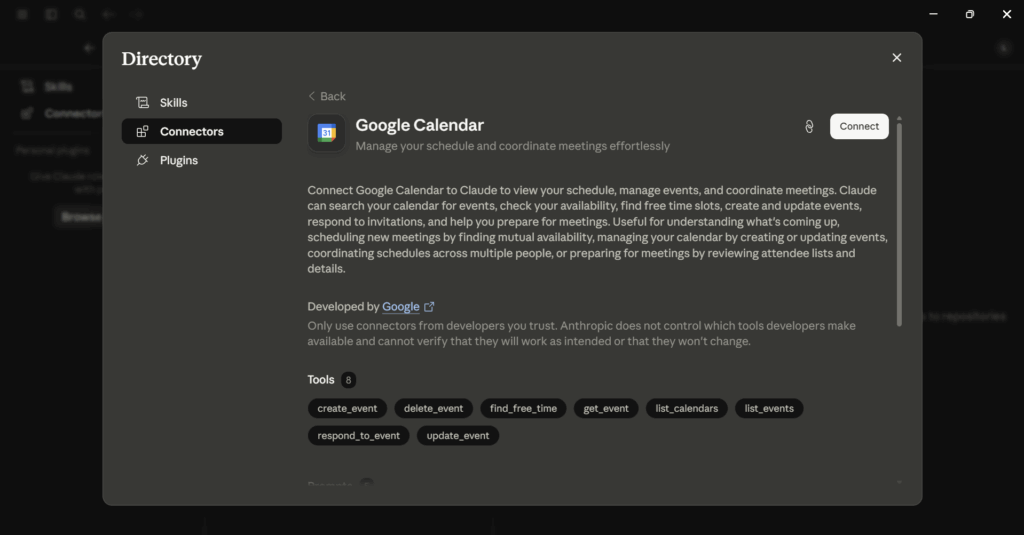
Verify the connection: ask your assistant to create a short test event, confirm it appears in Google Calendar, then delete it.
Option B: Add the MCP server manually (other clients)
Some clients, like Cursor, let you add Google Calendar’s MCP as a custom remote server. The server URL is:
https://calendarmcp.googleapis.com/mcp/v1
If your client doesn’t handle Google sign-in for you automatically, you may need to create an OAuth client ID and secret and enter them in your client’s MCP settings. See Google Calendar’s MCP configure guide for those steps. That manual OAuth path can be tricky right now though. The built-in Claude and ChatGPT apps are the more reliable way to connect.
What Google’s MCP handles well
- Plain-language event management: create, update, and delete events from conversational instructions.
- Bulk operations: the assistant parses a list, email, or document and creates or updates many events in one go.
- Multimodal input (client-dependent): a photo of a schedule becomes calendar events.
- Targeted questions: “What’s in the description for my flight?” or “Who’s on the invite for the meeting on Thursday?”
- Invites and times: respond to invitations and suggest meeting times when creating events.
Where the Google Calendar MCP falls short
A lot of people connect Google Calendar MCP hoping their assistant will become an ongoing scheduler: replanning the day when a meeting runs long, fitting a task list around fixed events, and respecting working hours and deadlines across many items at once.
Google’s MCP can absolutely do a simple version of this. Ask it to “block two hours of prep around my meetings this week” or “add these deadlines as all-day events,” and it will. On the surface, that can look like auto-scheduling. The catch is that there’s no real auto-scheduling engine behind it. The assistant is improvising with event tools, one call at a time, and that breaks down as soon as you scale up.
What actually happens:
- It’s tool-by-tool, not holistic. The assistant calls
list_events, thencreate_event, thenupdate_event, one step at a time. There’s no shared model of “my tasks” or “my ideal week,” just individual edits. - Complex rescheduling is brittle. “My 10am ran over, replan the rest of today” or “fit these six deliverables around my meetings before Friday” depends on the LLM reasoning correctly across dozens of tool calls. It’s slow, constraints get quietly dropped, and quality varies from one run to the next.
- Nothing replans automatically. When a meeting moves or you add a task, nothing recalculates unless you ask again and re-explain how you want things shifted. Every change is a fresh, multi-step conversation.
- There’s no task model. Flexible work like “90 minutes of deep work this week” and any task metadata (priorities, durations, deadlines) don’t live anywhere Google Calendar natively understands. Everything has to become a calendar event.
- It’s Google Calendar only. Google’s MCP server can only access Google Calendar. If you use Outlook or iCloud calendars, you’ll need a different connector.
None of this makes Google’s MCP bad. It’s genuinely good at plain-language event management. The limitation comes when you try to rely on an LLM to be a complete auto-scheduler.
So, if creating, updating, and deleting events in conversation is enough for you, you’re done. Google’s MCP is the right tool, and you can stop here. But if you want an auto-scheduler that remembers all your constraints and instantly reschedules whenever plans change, you need a dedicated auto-scheduling app. That’s where FlowSavvy’s MCP comes in.
FlowSavvy’s MCP (with Google Calendar sync)
FlowSavvy is a task-and-calendar app that auto-schedules your work around meetings and replans when things change.
FlowSavvy’s MCP works the same way as Google’s: your AI assistant talks to it and calls tools on your behalf. The difference is that FlowSavvy includes a full auto-scheduling engine that schedules tasks quickly and reliably without dropping any constraints, and then syncs them to Google Calendar (or Outlook/iCloud).
How to connect your AI assistant to FlowSavvy’s MCP
- In FlowSavvy, go to Settings → Calendars and connect Google Calendar. Outlook and iCloud work the same way.
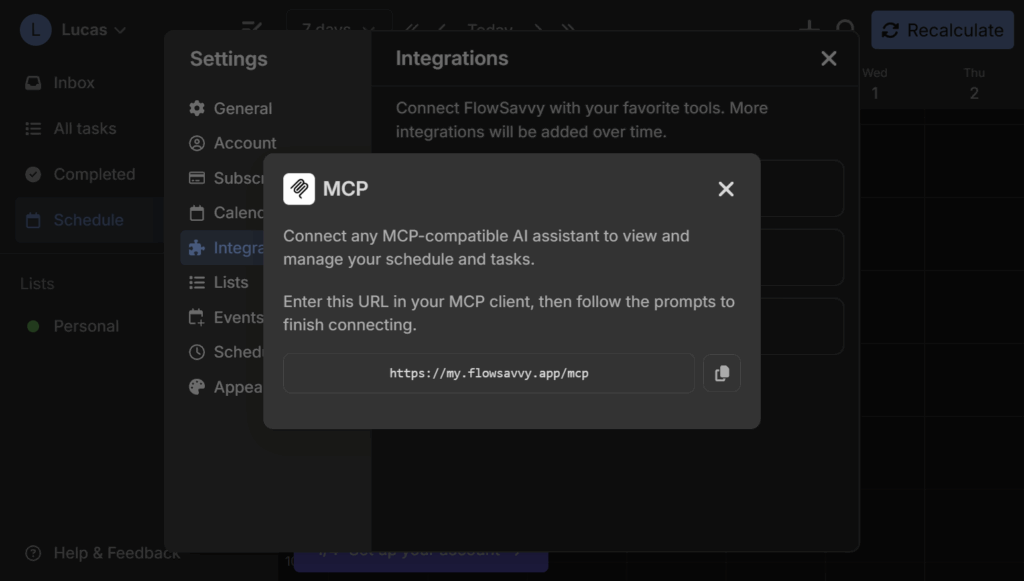
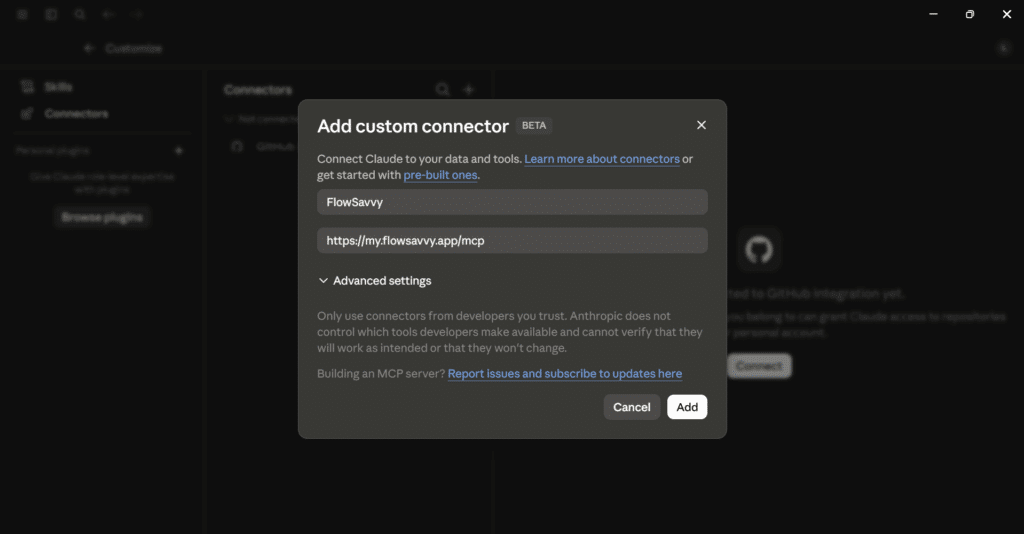
- In your AI assistant, add a custom MCP connector and paste in
https://my.flowsavvy.app/mcpfor the URL. For example, in Claude: Customize → Connectors → Add → Add custom connector. - Sign in to FlowSavvy when prompted and allow access.
- Verify by asking your assistant to add a test task or show your schedule for the week. It should appear in FlowSavvy and on your synced Google Calendar.
What FlowSavvy adds beyond Google Calendar’s MCP
- An auto-scheduling engine. FlowSavvy places and replans your tasks itself. The LLM doesn’t move events around one API call at a time.
- Constraints that stick to each task. Duration, deadline, scheduling hours, priority: they live on the task. Schedule recalculations respect them, so you never re-explain them.
- Instant recalculate. Add a task, move a meeting, or mark something done, and your whole schedule replans in seconds, not a long, error-prone tool loop.
- Hands-off maintenance. Changes trigger replanning automatically. You’re not re-requesting “replan my week” every time the day shifts.
- One endpoint, every calendar. Google, Outlook, and iCloud all flow through the same MCP connection.
Same prompt, different outcome
Take a realistic ask: “Add these eight tasks with different deadlines and durations, and schedule them around my meetings this week.”
- Google’s MCP + assistant: It can attempt this by creating and moving calendar events. For a couple of items, fine. With eight tasks and competing constraints, it gets slow, and some constraints get silently dropped. Then your Tuesday meeting moves, and you start over: a new conversation, re-explaining your preferences, and another long series of tool calls.
- FlowSavvy’s MCP + assistant: It adds the eight tasks with their scheduling fields, and then FlowSavvy takes over and auto-schedules them into your calendar (synced to Google Calendar). When the Tuesday meeting moves, everything updates automatically. The engine replans everything that’s auto-scheduled, constraints intact.
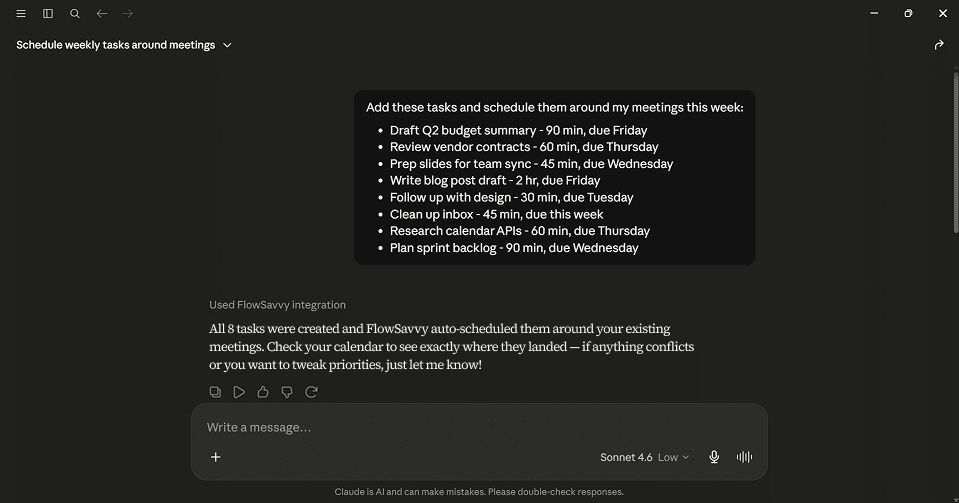
Google Calendar MCP vs FlowSavvy MCP: comparison
So which is the best MCP server for Google Calendar? It depends entirely on whether you want event management or actual scheduling.
| Google Calendar MCP | FlowSavvy MCP | |
|---|---|---|
| What it connects to | Google Calendar API directly | Google Calendar, Outlook, and iCloud Calendar via FlowSavvy |
| Setup | Built-in app in Claude/ChatGPT, or paste URL in other clients | Paste URL + set up calendar sync |
| MCP server cost | Free | FlowSavvy Pro required |
| MCP client cost | Depends on your assistant. Some clients allow custom connectors on free tiers, others need a paid plan. | Same. FlowSavvy doesn’t replace your AI client |
| Works with any MCP client | ✓ | ✓ |
| Read calendar / agenda | ✓ | ✓ |
| Create / edit / delete events in plain language | ✓ | ✓ |
| Bulk add or update from pasted text, images, or files | ✓ | ✓ |
| Tasks | ✗ (events only) | ✓ |
| Auto-scheduling engine | ✗ | ✓ |
| Recalculate on any change | ✗ (you re-request replans manually) | ✓ (automatic, near-instant) |
| Many tasks + constraints at scale | Slow; constraints often dropped | Handled reliably by the engine |
Which one should you use?
- Google’s MCP if you want plain-language event create, update, and delete (including bulk adds from pasted text) and you don’t need a task list, auto time-blocking, or complex scheduling.
- FlowSavvy’s MCP if you want all of that plus tasks, flexible work scheduled around your meetings, automatic replanning when the day changes, or Google, Outlook, and iCloud unified in one place.
- Both at once? Usually not worth it. Stick to one calendar MCP connector at a time so your assistant doesn’t get confused about where to write.
Ready to connect?
If plain-language event management is all you need, you’re set: connect Google Calendar in Claude or ChatGPT from the app directory, or add the MCP server manually in another client, then start talking to your calendar.
If you want tasks and real auto-scheduling on top of event management, that’s what FlowSavvy is built for. Sync your calendar, add the FlowSavvy MCP URL to your assistant, then dump your week in plain language and let the engine place the work around your meetings and replan it whenever things change. Try FlowSavvy here.
FAQ
How do I connect Google Calendar to an AI assistant?
In Claude or ChatGPT, find Google Calendar in the connector or app directory and click Connect, then sign in with Google. For other clients that support custom MCP servers, add https://calendarmcp.googleapis.com/mcp/v1 manually.
Does Google Calendar MCP work with Claude?
Yes. Open Customize → Connectors in Claude, find Google Calendar, and click Connect.
Does Google Calendar MCP work with ChatGPT?
Yes. Open Apps, find Google Calendar, and click Connect.
Does Google Calendar MCP work with Cursor and other MCP clients?
Yes, but setup is manual. Add https://calendarmcp.googleapis.com/mcp/v1 as a custom remote MCP server. If your client doesn’t handle Google sign-in automatically, you’ll need an OAuth client ID and secret from Google. See Google Calendar’s MCP configure guide.
What’s the best MCP server for Google Calendar?
Google’s MCP server is best if plain-language event create, update, and delete (including bulk adds) is all you need. FlowSavvy’s MCP is the better choice if you want auto-scheduling and instant full-schedule replanning behind the same conversational interface, with Google Calendar sync.
Can an AI assistant create and edit Google Calendar events via MCP?
Yes. That’s the core use case for Google Calendar’s MCP. It writes directly to your calendar. FlowSavvy’s MCP can also write to your schedule and sync back to Google Calendar.